
Work a case
A case is the durable record of an investigation — the hypothesis, the evidence, and everything the Investigator did to get there. You reach one by selecting it in the inbox or clicking Open case on a Slack post. The same case keeps growing as you ask follow-ups: each run adds a chapter instead of starting over.
The case document
The case’s title and its actions — Settle, Full session, and Retry when the last run failed — sit in the bar across the top. A column beside the case answers where it came from: the Slack channel or console, the project, when it started, and the activity so far, with Open thread to jump back to Slack. If the case moved while you were away, an Updated since your last visit strip says so.
Below that, the journal: one chapter per run, newest first on a timeline, with the latest chapter unfolded. At the bottom, a Current case line summarizes the state — hypothesis, findings count, next moves — and unfolds into the full document:
- Working hypothesis — the current theory, with its posture (critical, degraded, watch, nominal) and confidence.
- Findings — each tagged Confirmed, Likely, or Low, with dead ends marked Ruled out and open threads marked Loose end.
- Next moves — what the Investigator would do next.
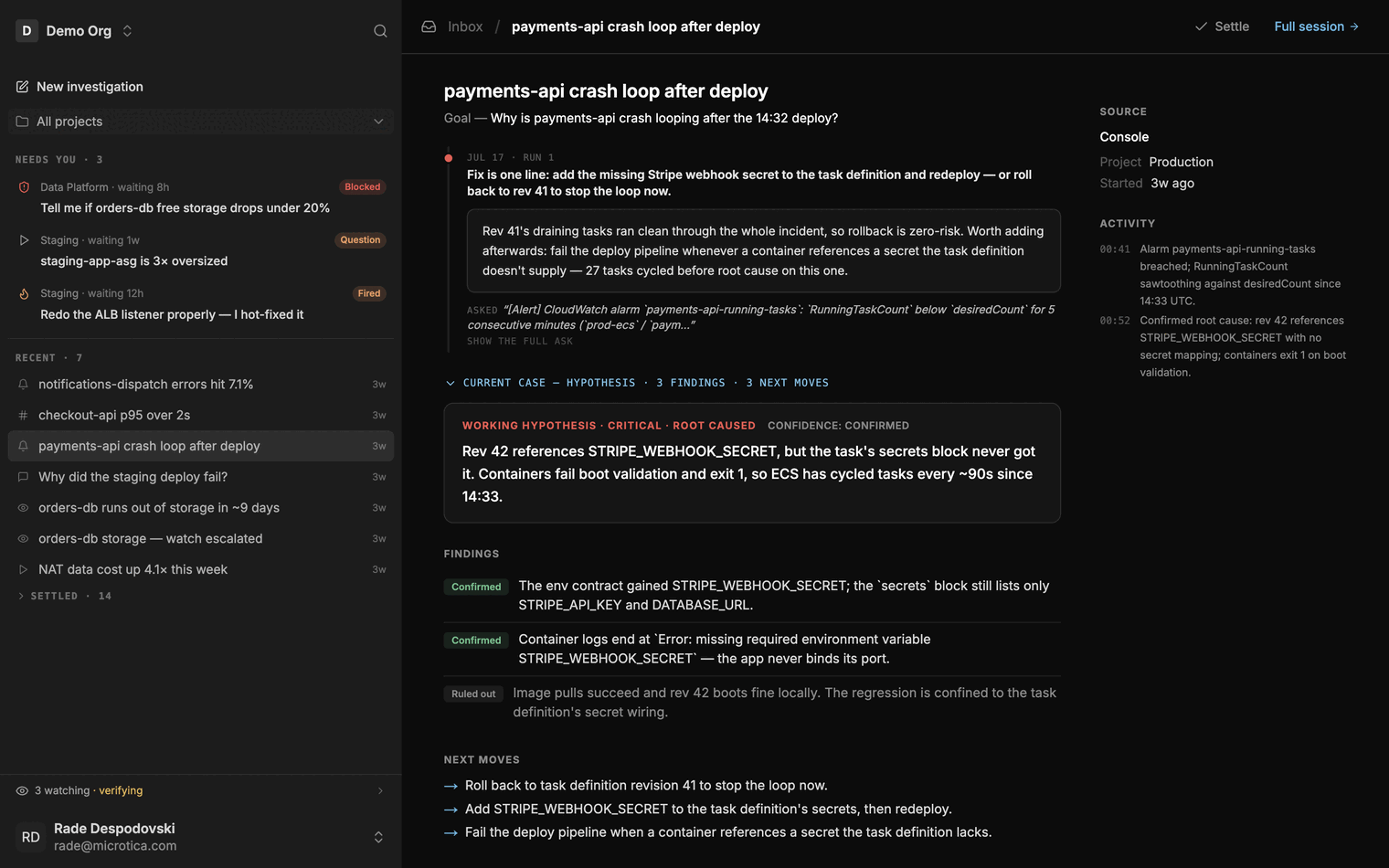 The case document — the hypothesis, its confidence, and the findings behind it.
Waiting on you
When the Investigator needs a human decision, the case shows a Waiting on you card with its question. Some questions come with option buttons — click one to answer. Otherwise, type into the answer box and click Send answer (Cmd/Ctrl+Enter also sends). The run resumes with your answer.
If the case came from Slack, the card notes that your answer is posted to the thread as you — it appears in the Slack thread as your name, marked “via console”, so teammates following the thread see the decision too.
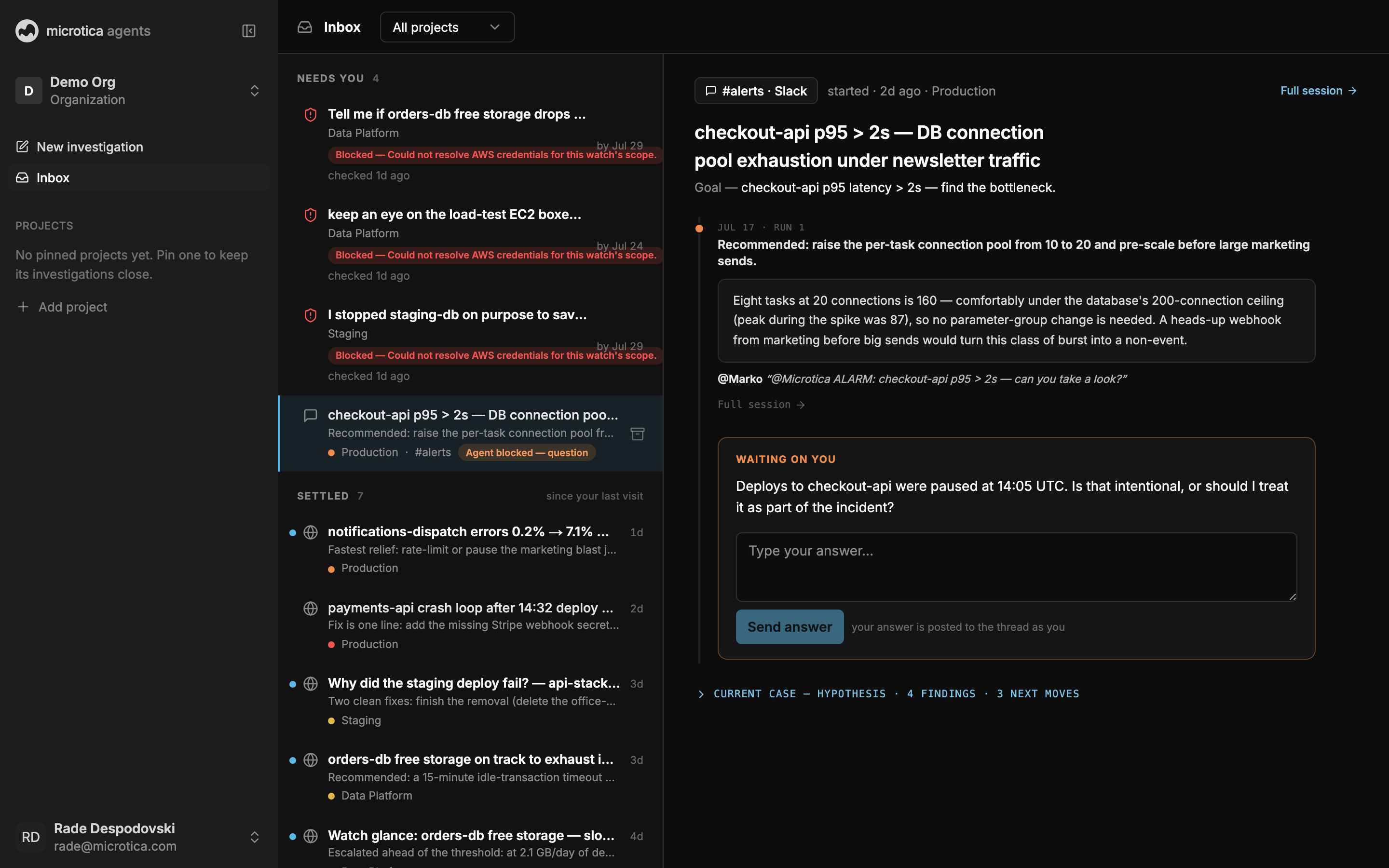 The Waiting on you card — answer here, and it lands in the Slack thread as you.
Redirect, deepen, or stop
- To redirect: type the new direction in the message box during an active run. When you start typing, Stop changes to Steer; click Steer to send it. See Redirect a running investigation.
- To deepen: press Deepen on the case’s Slack post. The Investigator re-examines at full depth, chasing the loose ends and data gaps, and the result lands as a new chapter.
- To stop a run: open Full session — while a run is in flight, the send button in the composer becomes a Stop button. The case then reports honestly that it was stopped before finishing, rather than pretending to conclude.
- To clear a case out of the list, Settle it — org-wide and reversible, as described in The inbox.
Share a case
From the full session, open the menu next to the title and choose Share.
- Public share — turn on Public access and anyone with the link can view a read-only version of the case. Click Copy link to grab the URL. Turn the toggle off to revoke the link at any time.
- Private share — share with specific people instead of by link.
The shared page is clearly marked Read-only view — viewers can read everything, change nothing.
Next: Watches