
Members & roles
Microtica Agents is built for the whole team to work cases together, so your organization holds the people and every project in it is open to all of them. You invite teammates by email; they get a link, accept, and they’re in.
Roles
Every member has one of three roles:
- Owner — full control. Only an owner can change the role of, or remove, another owner, and the last remaining owner can’t be demoted or removed.
- Admin — can invite members, grant the admin role, change roles, and remove members (except owners). Admins can also manage billing.
- Member — works in the workspace: runs investigations, works cases, connects integrations. Can’t manage members or billing.
Owner is never granted through the invite form — invitations are for Member and Admin only.
Invite a teammate
Inviting requires the owner or admin role.
- In the console, open Members under Organization settings.
- In the Invite a member section, enter their email, pick a role — Member or Admin — and click Invite.
- The invitation appears under Pending invitations with its expiry date. You can Cancel it there any time before it’s accepted.
The page shows your seat usage — “3 of 5 seats used” — and pending invitations count against it. When you hit the cap, the form disables and shows Member limit reached with a link to upgrade.
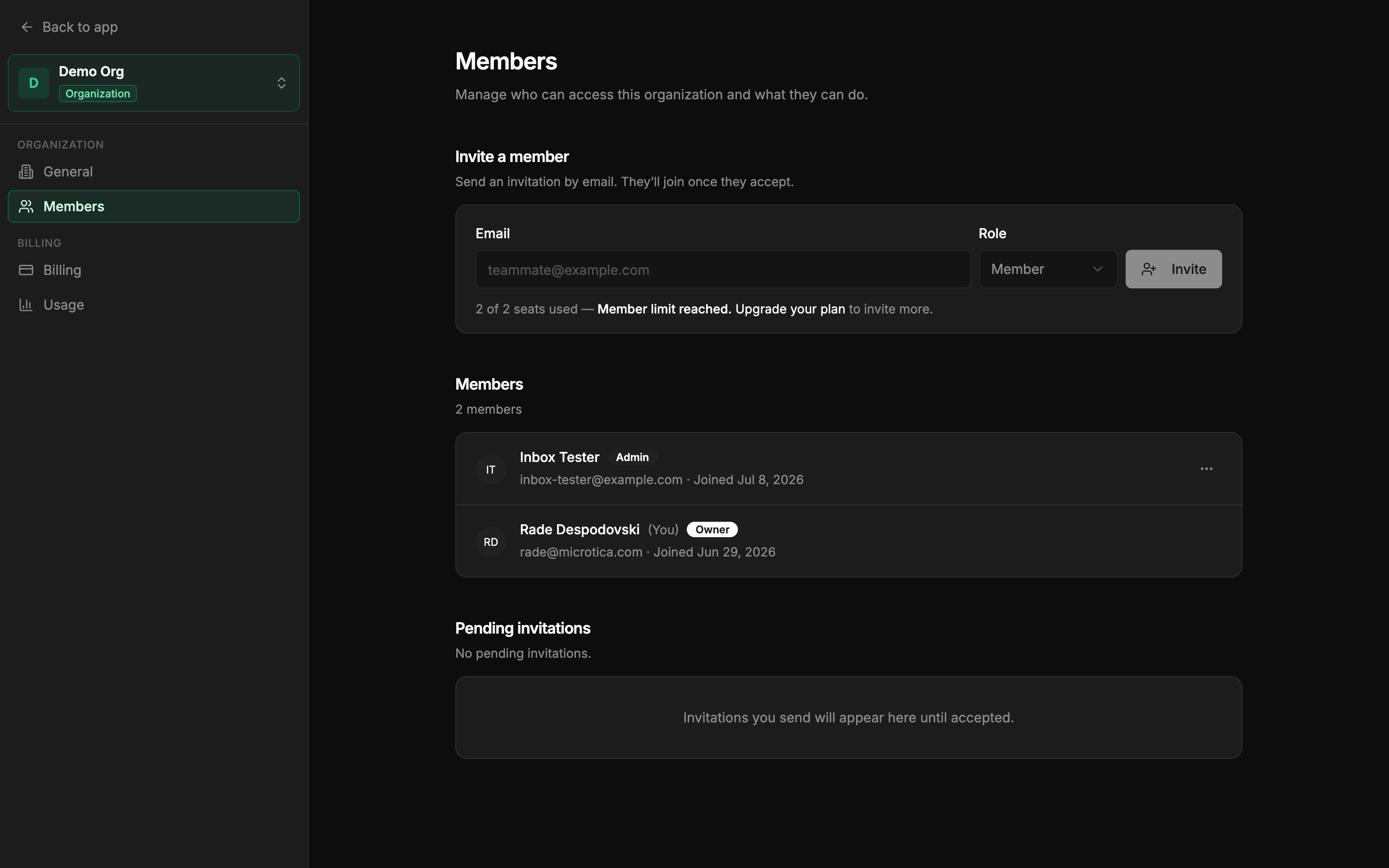 Members — roles, pending invitations, and seat usage in one place.
Accepting an invitation
The invited teammate gets an email with a link. Opening it:
- Signed out — they see the invitation with Log in to accept and Create account options; after signing in they land back on it.
- Signed in as the invited email — they see who invited them and as what role, with Accept invitation and Decline buttons. Accepting drops them straight into the organization.
- Signed in as a different account — the page explains the invitation was sent to another email and offers Log out and switch account. Only the invited address can accept.
Managing members
Owners and admins manage members from the row menu on the Members page: Make admin, Make member, or Remove member (on your own row, Leave organization). Removing a member takes away their access to the organization and its projects — and it’s undone by simply inviting them again.
Seats per plan
| Plan | Members |
|---|---|
| Free | Up to 2 |
| Pro | Up to 5 |
| Team | Unlimited |
Next: Billing & credits