
Connect Slack
Slack is where you’ll actually meet the Investigator day to day — it posts case updates into a channel you choose, and mentioning @Microtica under an alert starts an investigation right in the thread. Connecting your workspace to Microtica Agents takes one OAuth approval.
Install the app
- In the console, open your project’s settings and choose Integrations under Connections.
- In the Slack section, click Add to Slack. You’re redirected to Slack to authorize the app for your workspace.
- Approve the requested permissions. Slack sends you back to the Integrations page, and a Slack connected confirmation appears.
If your workspace requires an admin to approve new apps, you’re prompted to request approval — connect again once it’s granted.
Pick your channels
Once connected, the Slack section shows your workspace with a Connected badge and the routing settings:
- Choose a Default channel — this is where case updates post. Use Send test to confirm the Investigator can post there.
- Optionally set a Critical, Warning, or Info override to route those severities to a different channel. Anything without an override falls back to the default.
- Click Save Slack settings.
The channel picker lists your workspace’s public channels (marked #) and any private channels the Investigator has been invited to (marked with a lock).
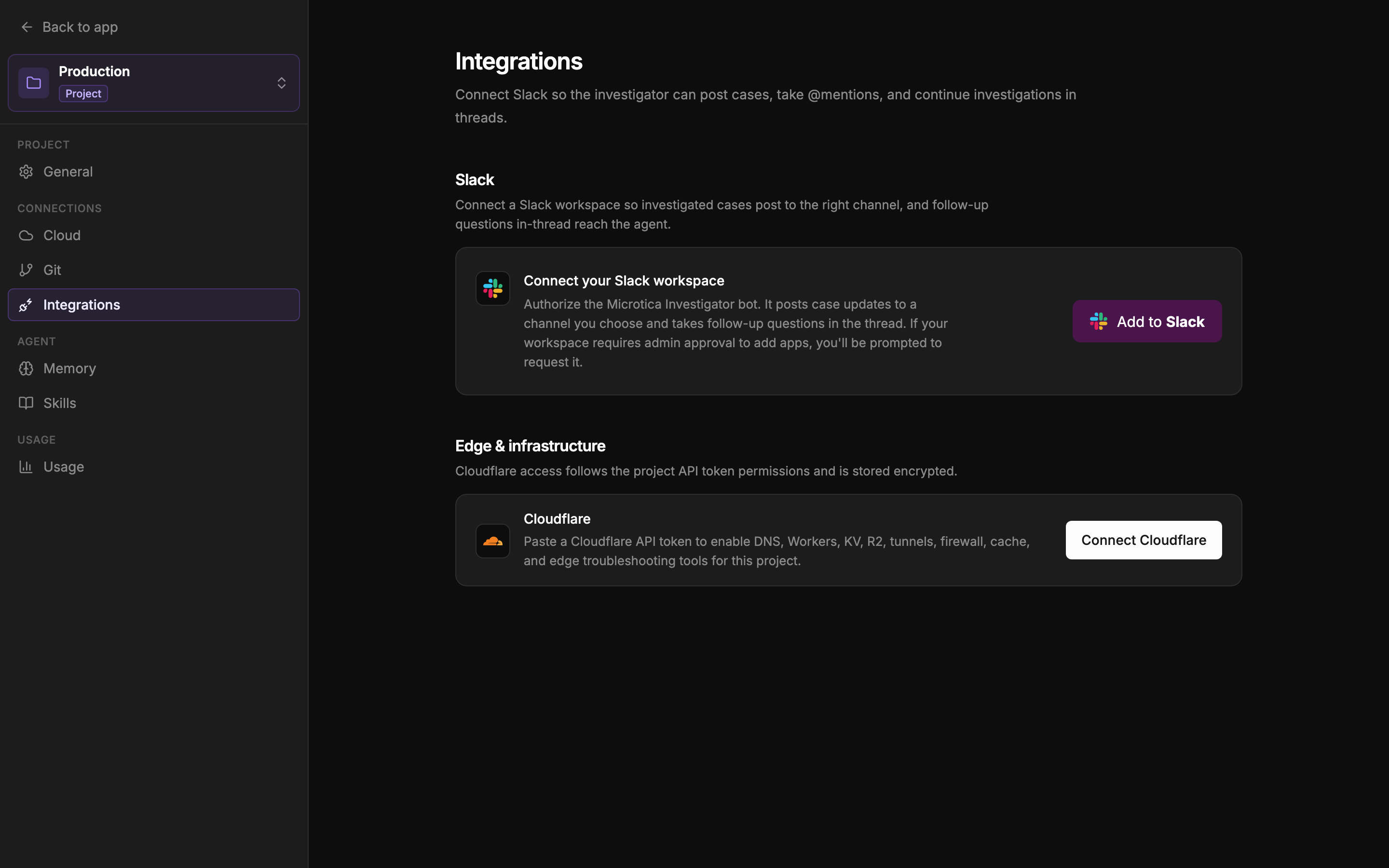 The Integrations page — Slack install and channel routing live here.
Public vs. private channels
- Public channels work out of the box: the Investigator can post to any public channel and joins a channel automatically before its first post there, so thread replies and mentions reach it without setup.
- Private channels are different — Slack doesn’t let apps see or join them on their own. Run
/invite @Microticain the private channel once; after that it shows up in the channel picker and works like any other channel.
What starts working
- Case updates post to your default channel (or a severity override), and the conversation continues in the thread.
- Mentioning
@Microticaunder any alert starts an investigation in that thread. - Replies in an investigation thread reach the Investigator as follow-ups.
Daily use — summons, follow-ups, and how threads map to cases — is covered in The Investigator in Slack.
If it doesn’t connect
- If you land back with a Connection failed message, the reason is shown — most commonly the install wasn’t completed, or your workspace needs admin approval first.
- If the authorization expired before completing, just click Add to Slack again.
- If the channel list won’t load after connecting, reload the page — or reconnect if the app was removed from the workspace.
Next: Connect Git providers