
Connect Kubernetes
If your workloads run on Kubernetes, connect the cluster to Microtica Agents so the Investigator can inspect pods, deployments, and events during an investigation. Access is a read-only service-account token you generate yourself — plain YAML, nothing hidden — stored encrypted and scoped to this project.
Connect a cluster
- In the console, open your project’s settings and choose Cloud under Connections.
- In the Container orchestration section, find Kubernetes cluster and click Connect. The Connect Kubernetes Cluster dialog opens.
- Copy the
kubectl applycommand from step 1 and run it against your cluster. It applies a read-only ServiceAccount and ClusterRole —get,list, andwatch, no writes — then prints your cluster endpoint and API token. If you’d rather read the YAML first, View the manifest shows it in full. - Give the cluster a Cluster name you’ll recognize, like
prod-eu-central. - Paste the two values the command printed into Cluster endpoint and API token.
- Click Connect. Microtica verifies the credentials against your cluster before saving, so a wrong endpoint or an expired token fails here rather than at your first investigation.
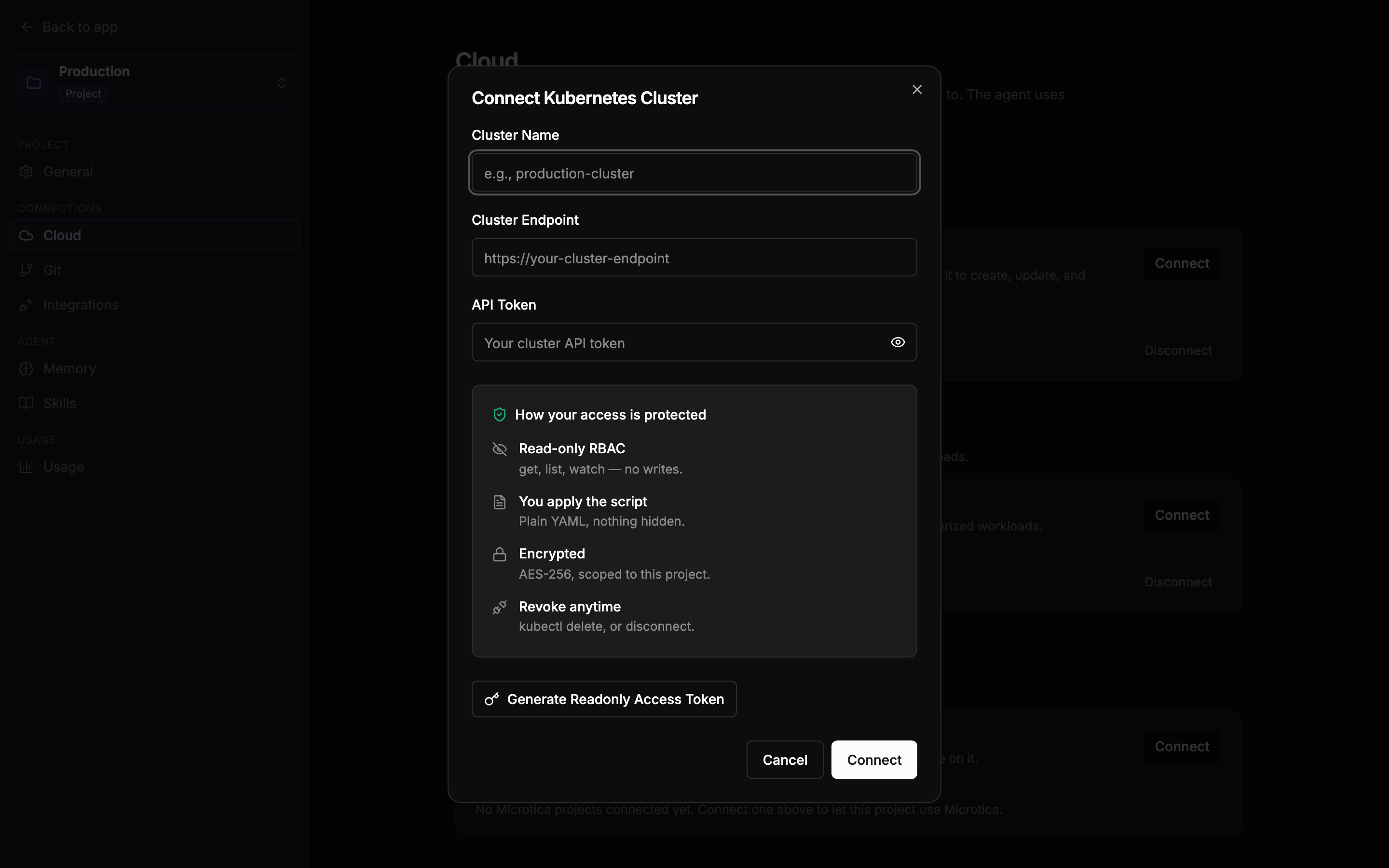 Two steps — run one command, paste what it prints back.
What the token allows
The RBAC role you applied grants read verbs only: the Investigator can look at any resource in the cluster but cannot create, change, or delete anything. Details live in Security & access.
Rename or disconnect
- Rename: click the cluster’s name in the list and type a new one.
- Disconnect: click Disconnect next to the cluster and confirm in the Disconnect Kubernetes Cluster dialog. To revoke from the cluster side instead,
kubectl deletethe resources the manifest created — the token stops working immediately.
If it doesn’t connect
- The Cluster Endpoint must be a valid URL — the form tells you if it isn’t.
- Clicking Connect checks the connection against your cluster before saving anything, so a wrong endpoint or a bad token fails right in the dialog with the reason.
- “We couldn’t reach your cluster” — check the endpoint URL and that the cluster’s API is accessible from the internet (a private-only endpoint won’t work).
- “Your cluster didn’t accept the API token” — the endpoint is fine but the token isn’t. Generate a fresh one with Generate Readonly Access Token and make sure you copy the whole token and nothing else — no shell prompt, no trailing characters.
- “That endpoint doesn’t appear to be a Kubernetes cluster” — something answered at that URL, but not your cluster’s API. Double-check the endpoint.
- Nothing is saved on a failed attempt, so just fix the field and click Connect again.
Next: Connect Slack