
Watches
A watch is a standing commitment: you’re doing something temporary or risky, and the Investigator keeps an eye on it until it’s resolved. It holds your own words — verbatim — with a review-by date, and where those words name something it can measure, it compiles cheap machine checks and runs them on a cadence. When there’s nothing to measure, it holds the date and checks in when it arrives.
This page is how you use one. For what it compiles, how the checks run, and every state a watch can be in, see How watches work.
Create a watch
Tell the Investigator during any session:
I’m stopping staging-db over the weekend — keep an eye on it until I restore it.
It arms the watch and confirms what it’s holding and until when. For a turn that should do nothing but arm a watch, type /watch followed by the intent in the composer.
The Investigator also proposes watches on its own. When it would otherwise promise to “check back on that”, it offers a watch instead — a promise that actually gets checked. You accept it, and the watch records that it came from a proposal.
Watches are scoped to what the session could already see: a watch never widens the Investigator’s reach.
Where watches live
The sidebar footer is the heartbeat — N watching, with the next review date beside it, or verifying when one is re-checking right now. Click it and the watches unfold in place, soonest first, each with its countdown: due now, in 2d, by Aug 2. A green dot means armed; amber means it’s checking.
 Click the heartbeat and the watches unfold — soonest review date first.
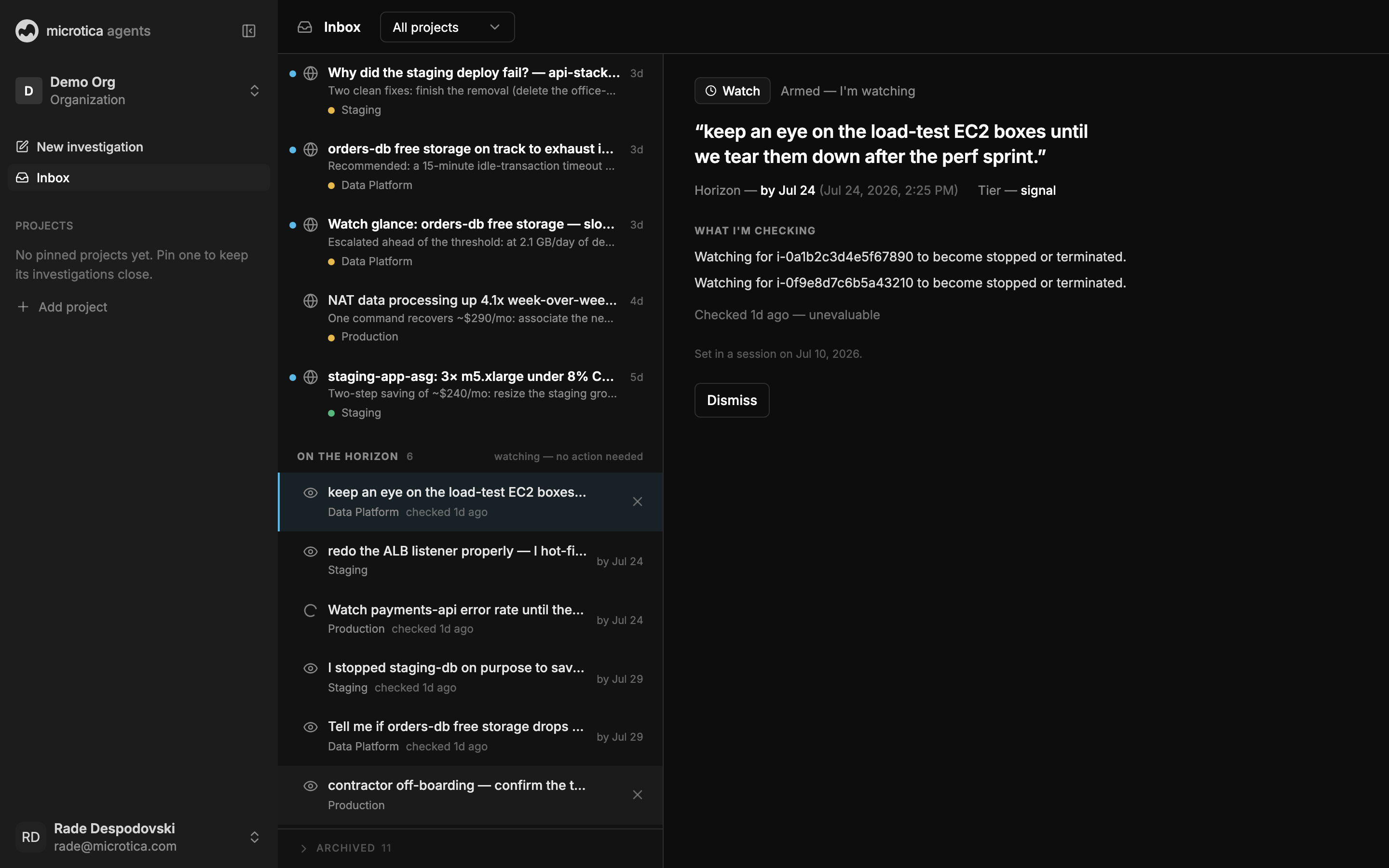
Select one for the full picture: your intent quoted back, the horizon, the tier, exactly what it’s checking, and the recent checks.
A watch that fires or gets blocked leaves the footer and rises into the list above, where it can ask for you.
When a watch fires
Two things fire a watch:
- The review date arrives. The Investigator takes a quick look at the current state and nudges you: where things stand, and what you said you’d do about it. It doesn’t escalate on its own — Deepen is there if you want the full look.
- A check trips. The Investigator opens a real investigation with the evidence already in hand.
Either way a case opens, the watch surfaces with a Fired chip, and the case carries a line saying which watch triggered it, and when.
Verify, then close
A fired watch never closes on your word alone — it verifies first. Press I fixed it — check and the Investigator re-runs the checks right then. If the condition is gone, the watch resolves with a receipt: “Checked again — back to normal. Closing this watch.” If it’s still firing, it says exactly what it’s still seeing, and the watch stays open.
A deadline-only watch has nothing to re-check, so its button just acknowledges and closes: Done in the console, Done — close it in Slack.
If a check can’t run at all — a broken connection, a scope it can’t reach — the watch surfaces as Blocked, with the reason.
Dismiss a watch
If a watch no longer matters, press Dismiss in its detail pane. Dismissing removes it for good — unlike settling a case, there’s no undo.